It was very easy to configure Elfeed in Emacs to have all the blogs and news from the sites I like, together in Emacs. In this short article, I share how I configured the Elfeed package with the RSS feeds of some of the blogs I enjoy reading. This is important for me because I often spend time filtering through a lot of content that I am not interested in on forums like lemmy.ml or reddit.com. Using this method is also a way to avoid ads and go directly to the content I want to see.
Elfeed
Elfeed is a package for Emacs designed specifically to aggregate feeds. Most websites provide feeds where they “broadcast” newly added articles. Elfeed processes that information and presents it as an ordered table, where you can see the titles of the blogs or articles along with some additional details.
To install Elfeed in Emacs, simply (you’ll need MELPA or ELPA) do:
M-x package-install RET elfeed RET
Then, add this to your .emacs file:
(global-set-key (kbd "C-x w") 'elfeed)
(You can use C-x w or any other keybinding of your preference, in case you already have something assigned to C-x w.)
Now, by invoking M-x elfeed or C-x w, you’ll get a (not-so-impressive) empty screen. That’s because we haven’t added any feeds yet. 📝
Adding the Feeds
To add feeds to Elfeed, simply use some code like this:
(setq elfeed-feeds
      '(("https://url.del.feed/atom.xml" tag-name)))
tag-name is the label (or labels) you want to assign to the tags for that specific source. Check out these examples:
(setq elfeed-feeds
      '(("https://planet.emacslife.com/atom.xml" emacs)
        ("https://xenodium.com/rss" emacs)
        ("https://lemmy.ml/feeds/c/emacs.xml?sort=Active" emacs)
        ("https://programming.dev/feeds/c/django.xml?sort=Active" django)))
Enjoying the Result
Once you’ve loaded those feeds, open Elfeed again and reload with G (elfeed-search-fetch).
The result should look something like this:
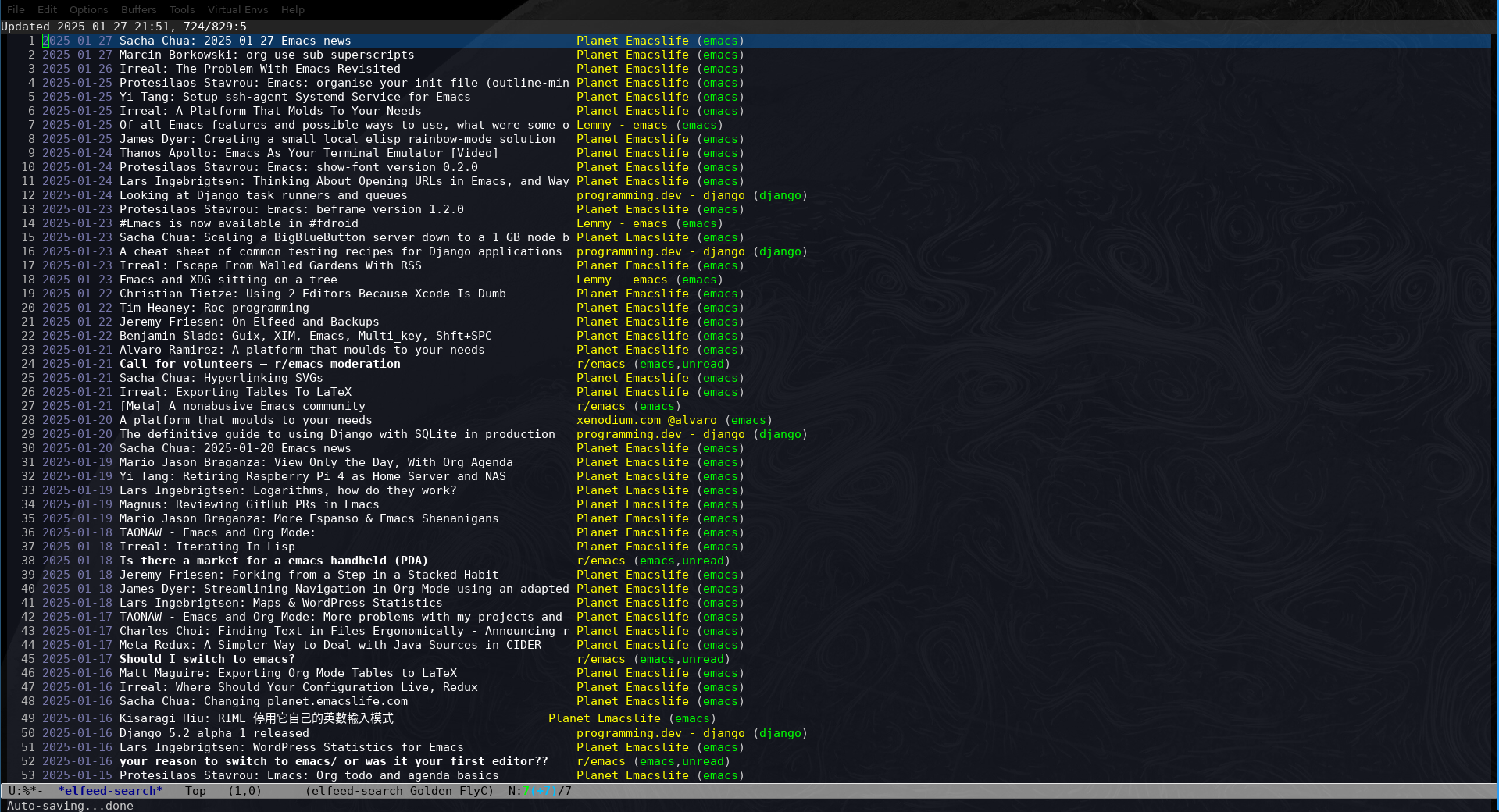
Screenshot of elfeed
Now you can navigate between different posts, perform searches, and read the articles that spark your interest.
Navigation within this screen is possible with the shortcuts you’ve configured for moving to the next and previous lines (C-n and C-p in vanilla Emacs), along with n (next-line) and p (previous-line). You can mark entries you’re not interested in as “read” using r (elfeed-search-untag-all-unread), or read them directly with RET (elfeed-search-show-entry).
The search functionality is triggered using s (elfeed-search-live-filter). It’s an incremental search, and you can filter results by dates and tags:
- Writing “lis” after invoking the search will display results containing:
- The word “list”
- The word “lisp”
- The word “eslip”
- The word “playlist”
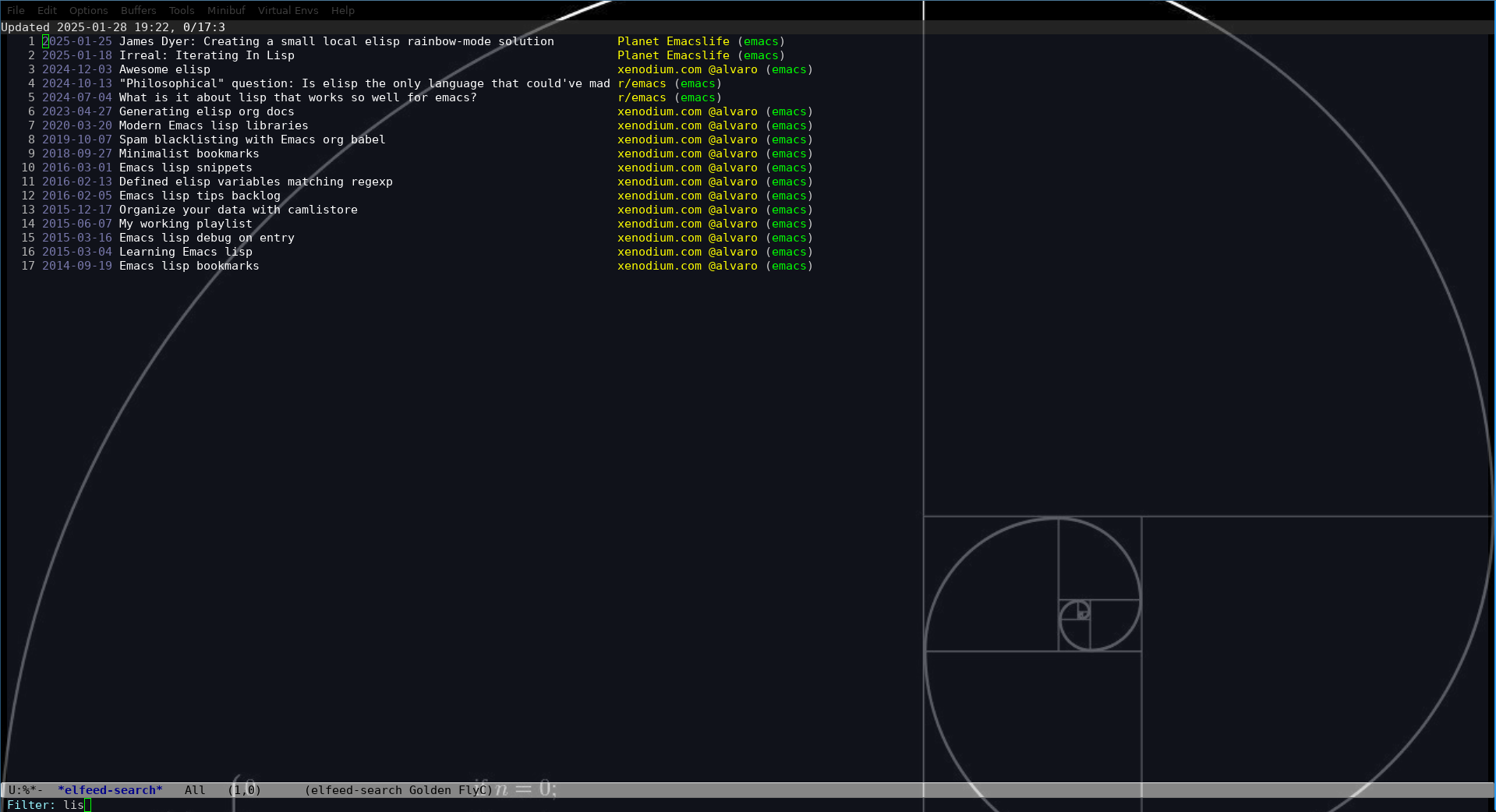
Search in elfeed
There are also other keyboard shortcuts you can explore—make sure to check them with C-h m or simply by pressing h (describe-mode).
Reading a Post
To read an entry, select it and press RET. That’s all there is to it. In the majority of cases, the post will appear in Emacs, allowing you to read it right there. In cases where you prefer to read it in your system’s web browser, press b (elfeed-search-browse-url), and the post will open in your browser.
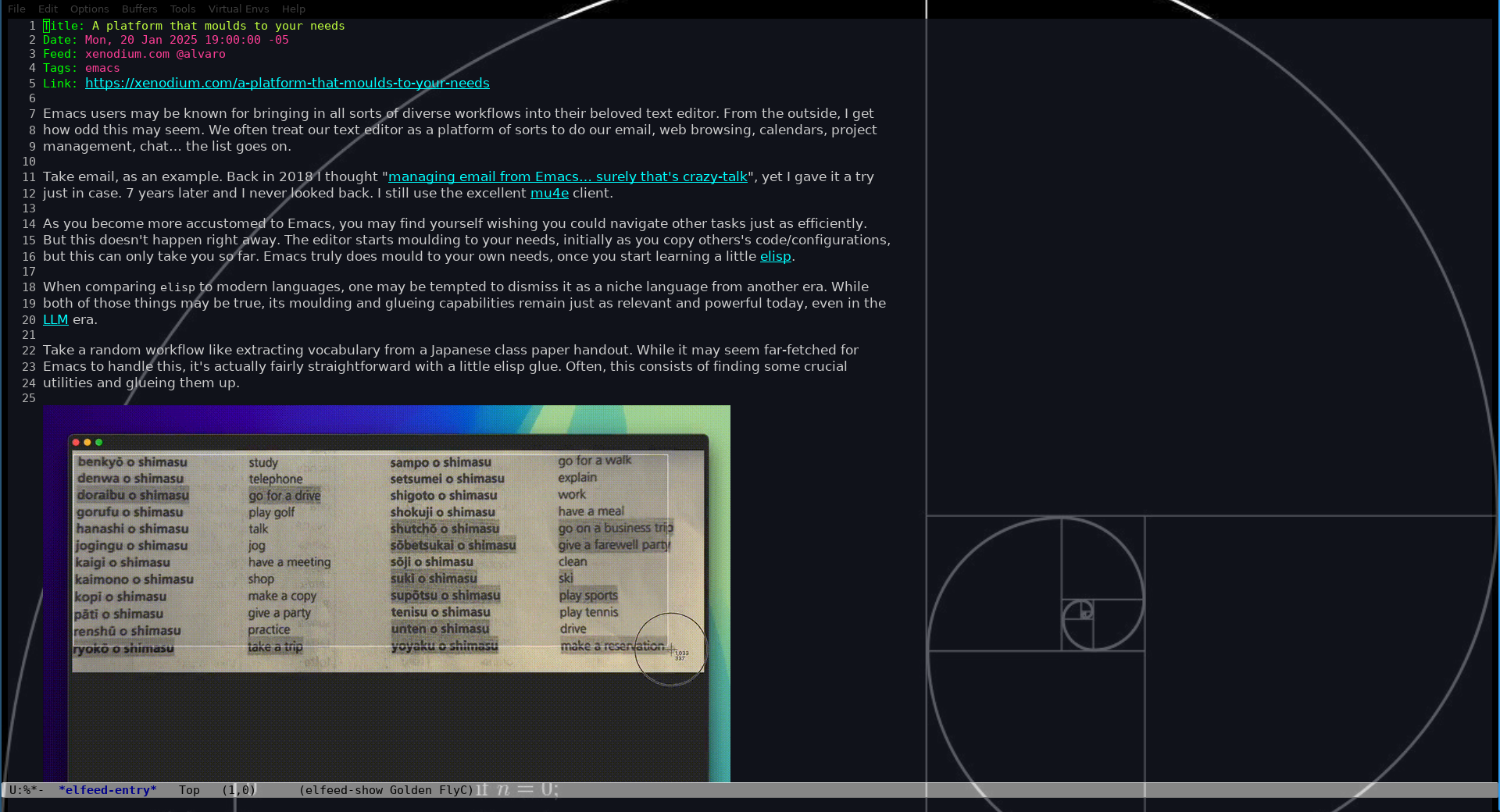
Reading a post in emacs
The same post appears like this in my browser:
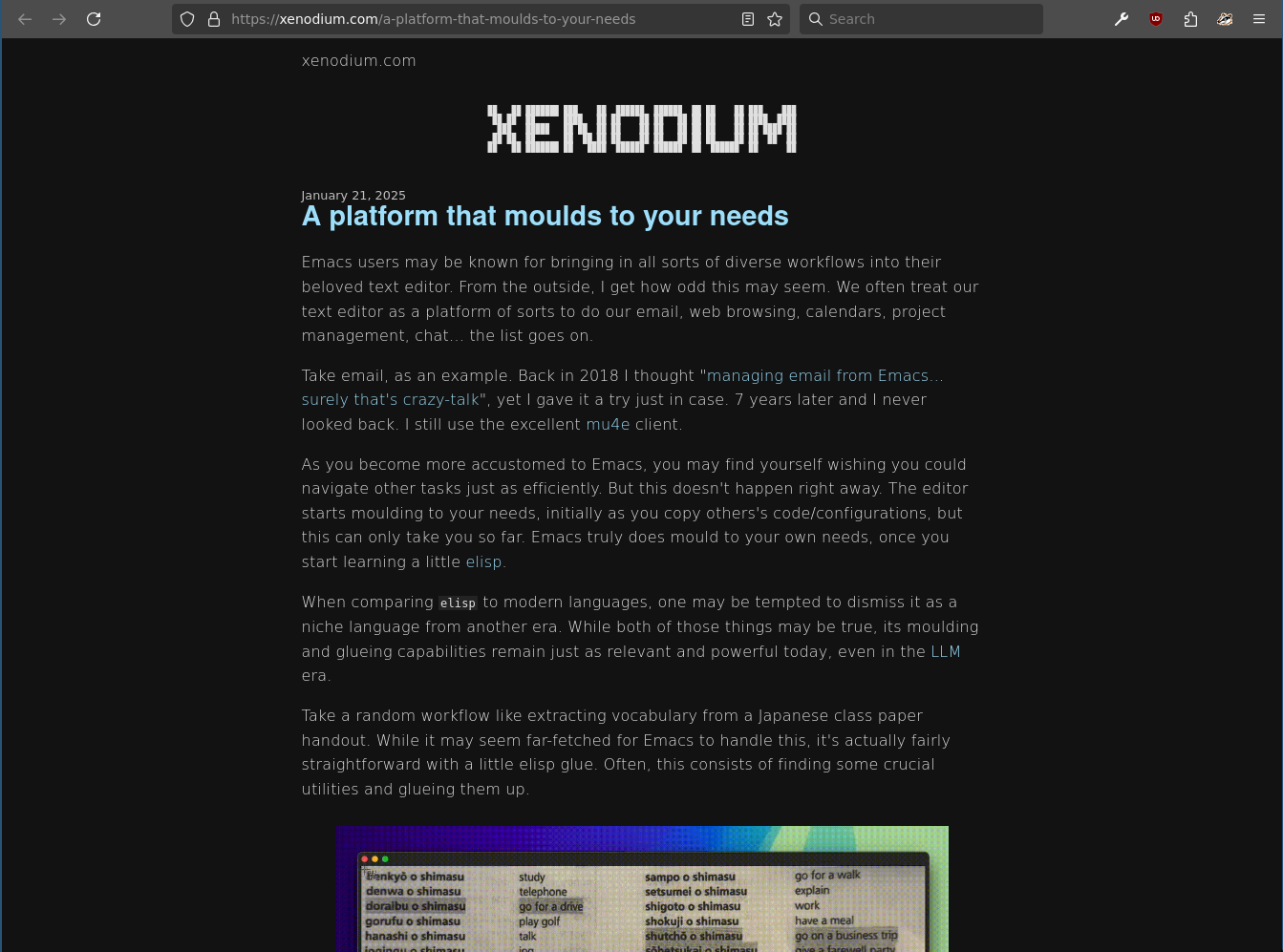
Reading the same entry in Firefox
A very interesting behavior of b is that it opens the post in a browser tab while simultaneously advancing to the next line in Elfeed. When you’ve used b for several entries you’re interested in, you’ll have multiple new tabs open in your browser.
But to tell the truth, I’d rather read them in Emacs itself 😉.

I encourage you to explore this simple but powerful way of staying updated on the topics you care about while avoiding content you don’t want to see. To learn more about Elfeed, visit its GitHub page.